Your First CUDA Program: Add a Million Numbers on a GPU
Nerdivation · Published
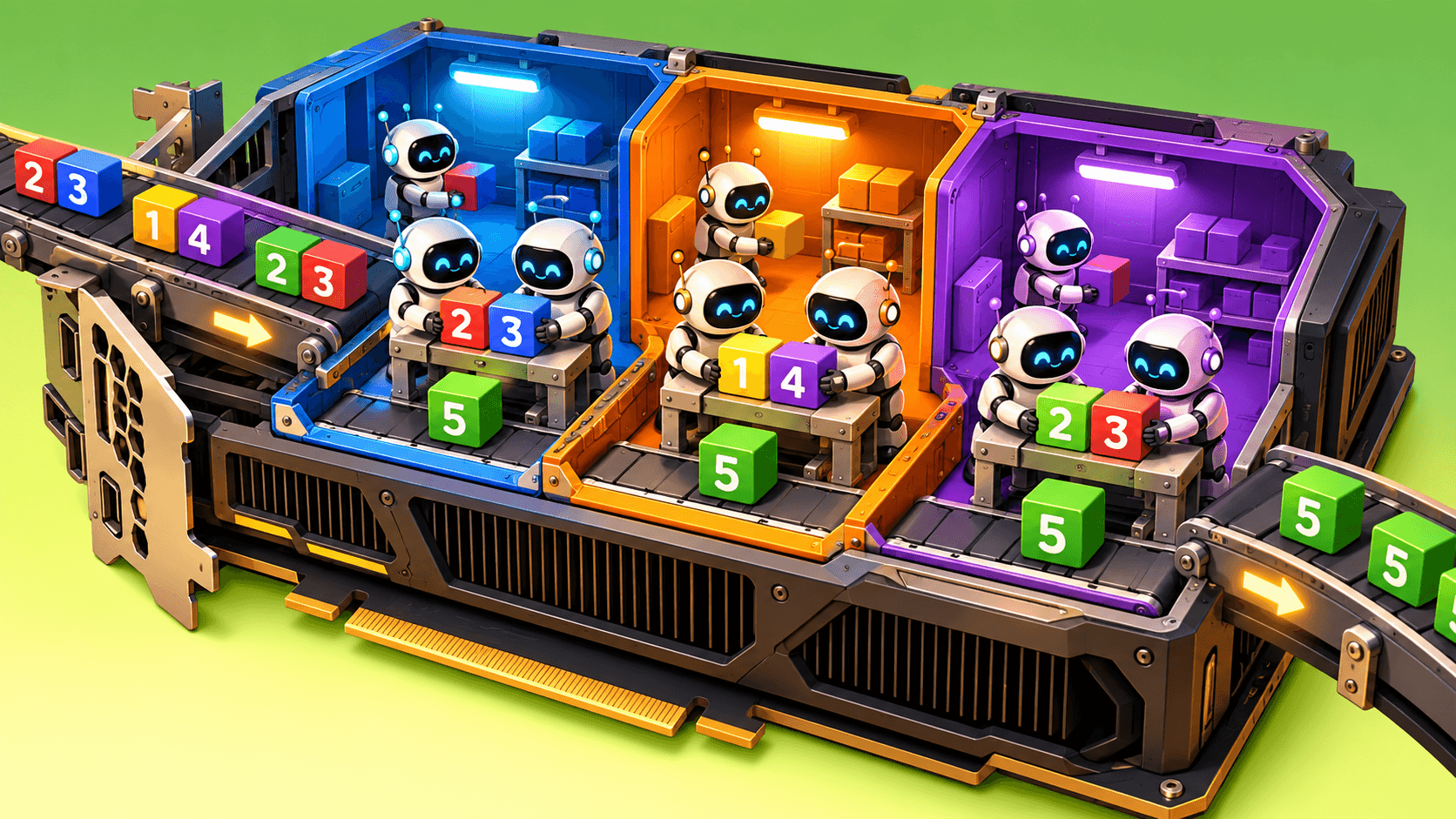
Our RTX 5090 completed the GPU launch-and-wait stage in 0.048 milliseconds, including launch and synchronization overhead. NumPy on the CPU needed 0.174 milliseconds. That looks like a comfortable GPU win.
But when we included getting the data to the GPU and bringing the answer back, the GPU operation took 0.903 milliseconds.
The GPU won the calculation and lost the job. How does that happen?
We are going to write the program that produced those results. Along the way, you will learn how CUDA threads find their work, why we group them into blocks, and why the stopwatch sometimes tells a different story from the specification sheet.
The job is simple: add two arrays containing a million numbers each.
We will use Python with NVIDIA’s Numba-CUDA package, which compiles a supported subset of Python into GPU kernels. [1]
Get your workspace ready
For the real-GPU steps, you need a compatible NVIDIA GPU and driver. This walkthrough uses Python 3.13 and the CUDA 12 dependency bundle documented by Numba-CUDA. [2]
If you do not have an NVIDIA GPU, you can still investigate the program with the simulator section below.
In Windows PowerShell, create a separate environment:
mkdir first-cuda-program
cd first-cuda-program
py -3.13 -m venv .venv
.\.venv\Scripts\python.exe -m pip install "numpy==2.3.5" "numba==0.68.1" "numba-cuda[cu12]==0.30.4"
Those version numbers are deliberate. During testing, an unconstrained installation selected NumPy 2.5.4 and encountered a compatibility error while compiling the kernel. NumPy 2.5 support has also been tracked in the upstream Numba-CUDA project. [3]
The versions above worked together in our tests.
On Linux, create the environment with python3 -m venv .venv and use .venv/bin/python in place of the Windows interpreter path.
For the hardware route, check that the NVIDIA driver can identify your GPU:
nvidia-smiA million additions, one obvious opportunity
Here is the calculation each thread will perform:
out[i] = a[i] + b[i]To calculate element 500, we do not need the answer for element 499. That independence is the opportunity. Different workers can handle different elements without passing answers down a chain.
NumPy already expresses the complete operation as:
out = a + bThat line is a serious CPU baseline. NumPy performs many array operations in optimized compiled code, so we are comparing against something more capable than an interpreted Python loop. [4] To give the GPU the same job, we need to tell each thread which element belongs to it.
How each thread finds its number
CUDA organizes software threads into blocks. The collection of blocks launched for a kernel is the grid. The GPU schedules that work onto its available execution resources. [5] Launching a million threads does not create a million physical processors. It creates a large amount of work for the hardware to schedule.
For a one-dimensional launch, each thread can calculate its index with:
i = blockIdx.x * blockDim.x + threadIdx.xThe names look intimidating, but each describes one part of the thread’s address:
Name | Meaning |
|---|---|
| Which block this thread belongs to |
| How many threads are in each block |
| This thread’s position inside its block |
| Its position across the whole launch |
Imagine blocks containing four threads each, with both indices starting at zero. Block index 2, thread index 1 gets 2 × 4 + 1 = 9, so its job is element 9.
Numba packages this calculation into cuda.grid(1). [1] That is the central trick: each thread figures out where it belongs, then performs its piece of the calculation.
Write the program
Create first_kernel.py:
import argparse

import numpy as np
from numba import config, cuda


@cuda.jit
def vector_add(a, b, out):
    i = cuda.grid(1)
    if i < out.size:
        out[i] = a[i] + b[i]


def main():
    parser = argparse.ArgumentParser()
    parser.add_argument("--size", type=int, default=1_000_000)
    args = parser.parse_args()
    if args.size < 1:
        parser.error("--size must be positive")

    if not cuda.is_available():
        raise SystemExit("CUDA is unavailable. Check the driver or use the simulator instructions.")

    a = np.arange(args.size, dtype=np.float32)
    b = np.full(args.size, 2.0, dtype=np.float32)
    expected = a + b

    d_a = cuda.to_device(a)
    d_b = cuda.to_device(b)
    d_out = cuda.device_array_like(d_a)

    threads = 256
    blocks = (args.size + threads - 1) // threads
    vector_add[blocks, threads](d_a, d_b, d_out)
    cuda.synchronize()
    result = d_out.copy_to_host()

    np.testing.assert_array_equal(result, expected)
    print("Mode:", "simulator" if config.ENABLE_CUDASIM else "GPU")
    print(f"Elements: {args.size:,}")
    print(f"Launch: {blocks:,} blocks x {threads} threads")
    print("First five:", result[:5])
    print("Matches NumPy: True")


if __name__ == "__main__":
    main()
Run it:
.\.venv\Scripts\python.exe first_kernel.pyOur real-GPU run produced:
Mode: GPU
Elements: 1,000,000
Launch: 3,907 blocks x 256 threads
First five: [2. 3. 4. 5. 6.]
Matches NumPy: True
The first input starts at zero. The second contains twos. The first five answers are therefore two through six.
The assertion checks the entire output against NumPy. The success message appears only after that check passes.
You have now written and launched a GPU kernel.
The addition was easy. Look at how much of the surrounding program concerns getting the work into the right place.
Why launch more threads than we have numbers?
We chose 256 threads per block. It is a reasonable starting point for a simple kernel and a multiple of the 32-thread warp size used by NVIDIA GPUs. [6]
One million does not divide evenly by 256, so we round up:
blocks = (N + threads - 1) // threadsHere, N is the number of elements. In our complete program, that value is args.size.
That produces 3,907 blocks containing 1,000,192 threads.
The final 192 threads have no matching element.
Our bounds check stops them:
if i < out.size:
    out[i] = a[i] + b[i]
For a smaller example, imagine ten elements covered by three blocks of four threads:
Block index | Thread index within block | Global index | Work to do? |
|---|---|---|---|
1 | 3 | 7 | Yes |
2 | 0 | 8 | Yes |
2 | 1 | 9 | Yes |
2 | 2 | 10 | No |
2 | 3 | 11 | No |
Both indices start at zero.
The launch is allowed to extend beyond the job. The memory accesses are not.
And 256 is a starting configuration, not a universal optimum. Get the kernel working before tuning it. Picking a block size for performance before the program is correct is like choosing racing tires before the car has an engine.
Those copies are part of the job
These lines create the device arrays. The first two allocate storage and copy the inputs to the GPU, while the third allocates an output buffer:
d_a = cuda.to_device(a)
d_b = cuda.to_device(b)
d_out = cuda.device_array_like(d_a)
This line brings the result back:
result = d_out.copy_to_host()Numba provides these APIs for explicitly controlling allocation and transfers between host and device memory. [7] The CPU-side program prepares the arrays, sends the inputs, launches the work, and retrieves the answer. The GPU performs the additions.
Those copies are part of the job. We are going to time them too.
Follow along without a GPU
Numba-CUDA includes a simulator that executes CUDA-style code through Python on the CPU. It is useful for debugging, but its timings do not represent GPU performance. [8]
In PowerShell:
$env:NUMBA_ENABLE_CUDASIM = '1'
.\.venv\Scripts\python.exe first_kernel.py --size 1003
Remove-Item Env:NUMBA_ENABLE_CUDASIM
On Linux:
NUMBA_ENABLE_CUDASIM=1 .venv/bin/python first_kernel.py --size 1003We deliberately use 1,003 elements. That keeps the simulation manageable and leaves the final block partly unused.
Our simulator run produced:
Mode: simulator
Elements: 1,003
Launch: 4 blocks x 256 threads
First five: [2. 3. 4. 5. 6.]
Matches NumPy: True
The simulator does not perform the same type checking and compilation as the GPU target. Passing a simulation is therefore not proof that every kernel will compile and run on hardware. [8]
Use it to investigate the logic. Use real hardware to validate GPU execution and performance.
Start the stopwatch in the right place
The benchmark script appears near the end of this article. Save it as gpu_race.py beside first_kernel.py.
Run:
.\.venv\Scripts\python.exe gpu_race.pyFor the larger test:
.\.venv\Scripts\python.exe gpu_race.py --size 50000000The script gives NumPy an existing output array using np.add(..., out=...). [9]
The GPU also reuses allocated arrays. For each repetition, it copies the inputs, launches the kernel, waits for completion, and copies the result back.
The timing pattern is:
start = time.perf_counter()

vector_add[blocks, threads](d_a, d_b, d_out)
cuda.synchronize()

elapsed = time.perf_counter() - start
That wait is essential. Kernel launches are asynchronous, so a CPU timer needs appropriate synchronization to include the completed work. [10]
We call this stage GPU launch + wait because it includes the host-side launch and synchronization costs. It is not a pure device-execution measurement.
The script warms both paths, excludes initial allocation and compilation, and reports the median of ten repetitions.
The GPU won one race and lost another
We tested on October 31, 2026, using:
- CPU: Intel Core i9-14900KS.
- GPU: NVIDIA GeForce RTX 5090.
- Operating system: Windows.
- NVIDIA driver: 617.42.
- Python: 3.13.5.
- NumPy: 2.3.5.
- Numba: 0.68.1.
- Numba-CUDA: 0.30.4.
- CUDA Toolkit package: 12.9.2.0.
All times are milliseconds.
Measurement | 1 million elements | 50 million elements |
|---|---|---|
NumPy, buffers reused | 0.174 | 20.611 |
Copy inputs to GPU | 0.497 | 30.473 |
GPU launch + wait | 0.048 | 0.455 |
Copy result to CPU | 0.361 | 15.661 |
GPU round trip | 0.903 | 46.719 |
Results match NumPy | Yes | Yes |
Each row is an independently calculated median. The stage medians do not necessarily add up to the round-trip median. At one million elements, the GPU’s launch-and-calculation stage was comfortably quicker than NumPy. But the CPU finished the entire addition before the GPU path had finished copying its inputs.
Increasing the workload to fifty million elements made the difference between calculation time and total time even more striking. The GPU launch-and-wait stage took less than half a millisecond, while the round trip took almost 47 milliseconds. The arithmetic was fast. Delivering the job and collecting the answer dominated this implementation.
These are measurements of one warm, repeated workload on one system. Reused data can benefit from caches. This script does not use pinned host memory or overlap transfers with computation. It is an experiment in where time goes, not a ranking of GPUs.
A lot of delivery for one addition
For every result, our kernel reads:
- Four bytes from
a. - Four bytes from
b.
Then it writes four bytes to out.
That is 12 bytes of array data for one floating-point addition. Actual traffic reaching device memory also depends on caches and how accesses are handled.
We are moving a relatively large amount of data to perform a very small amount of arithmetic.
Our explicit-copy implementation then adds the trip between host and device memory. NVIDIA recommends minimizing unnecessary transfers and including their cost when evaluating GPU acceleration. [10]
Now imagine that the next several operations can use the same data while it remains on the GPU.
You may be able to perform more useful work without repeating that delivery trip for every operation.
That changes the question. We are no longer asking how quickly the GPU can perform one addition. We are asking how efficiently the application can organize a sequence of work.
For the architectural picture, read Why GPUs Are So Much Faster Than CPUs.
Four mistakes to catch before chasing speed
Losing the bounds check
Our launch rounds up. The extra threads must stop before accessing elements outside the arrays.
Timing the request instead of the work
A launch can return before execution finishes. Make sure the measurement includes the completion you care about.
Mixing startup and repeated execution
Our warm-up excludes initial compilation from repeated timings. If startup matters to your application, measure that separately too.
Leaving the simulator switched on
Remove NUMBA_ENABLE_CUDASIM before testing real-GPU performance. The benchmark refuses to run in simulator mode.
Change one thing and see what happens
Once the original program works, try:
- Multiplication instead of addition, with a matching NumPy reference.
- Array sizes of 10, 255, 256, and 257.
- A different block size, while checking every result.
- Several operations on data that stays on the GPU.
Change one thing at a time.
That makes it easier to connect a result to its cause, rather than collecting a faster number and guessing why it improved.
What your first CUDA program taught you
The addition was the easy part. You also assigned work to threads, grouped them into blocks, handled extra threads, moved data between host and device arrays, and verified the result. Then the stopwatch exposed a distinction that matters far beyond this example:
A fast calculation and a fast application are different achievements.
Our RTX 5090 handled its calculation stage quickly. For this particular round-trip job, NumPy still delivered the finished answer sooner. Understanding that result is more useful than finding a single impressive speedup and assuming it applies everywhere.
Where to go next
For the hardware behind NVIDIA’s terminology, read What Are CUDA Cores?.
For the principles behind dividing work, read What Is Parallel Processing?.
For why advertised core counts describe different resources, read CPU Cores vs GPU Cores: Why the Numbers Don’t Compare.
For another programming technique, NVIDIA’s introduction to CUDA demonstrates a grid-stride loop, which lets each thread handle multiple elements.
Optional: the complete benchmark script
Save this as gpu_race.py in the same folder as first_kernel.py.
Input generation, initial allocations, compilation, validation, and printing are excluded from the timed regions. Both paths reuse their arrays, and each GPU trial includes input copies, execution, and the output copy.
import argparse
import statistics
import time

import numpy as np
from numba import config, cuda

from first_kernel import vector_add


def main():
    parser = argparse.ArgumentParser()
    parser.add_argument("--size", type=int, default=1_000_000)
    parser.add_argument("--repeats", type=int, default=10)
    args = parser.parse_args()
    if args.size < 1 or args.repeats < 1:
        parser.error("--size and --repeats must be positive")
    if config.ENABLE_CUDASIM:
        raise SystemExit("Use a real GPU for timings. Disable NUMBA_ENABLE_CUDASIM first.")
    if not cuda.is_available():
        raise SystemExit("CUDA is unavailable. Check your NVIDIA driver and CUDA installation.")

    rng = np.random.default_rng(0)
    a = rng.random(args.size, dtype=np.float32)
    b = rng.random(args.size, dtype=np.float32)
    cpu_out = np.empty_like(a)
    gpu_out = np.empty_like(a)
    d_a = cuda.to_device(a)
    d_b = cuda.to_device(b)
    d_out = cuda.device_array_like(d_a)
    threads = 256
    blocks = (args.size + threads - 1) // threads

    # Warm both paths. Compilation and initial allocations are not timed.
    np.add(a, b, out=cpu_out)
    vector_add[blocks, threads](d_a, d_b, d_out)
    cuda.synchronize()
    d_out.copy_to_host(gpu_out)
    np.testing.assert_array_equal(gpu_out, cpu_out)

    cpu_times = []
    for _ in range(args.repeats):
        start = time.perf_counter()
        np.add(a, b, out=cpu_out)
        cpu_times.append((time.perf_counter() - start) * 1000)

    copy_in, launch_wait, copy_out, total = [], [], [], []
    for _ in range(args.repeats):
        start = time.perf_counter()
        d_a.copy_to_device(a)
        d_b.copy_to_device(b)
        cuda.synchronize()
        after_in = time.perf_counter()
        vector_add[blocks, threads](d_a, d_b, d_out)
        cuda.synchronize()
        after_kernel = time.perf_counter()
        d_out.copy_to_host(gpu_out)
        end = time.perf_counter()
        copy_in.append((after_in - start) * 1000)
        launch_wait.append((after_kernel - after_in) * 1000)
        copy_out.append((end - after_kernel) * 1000)
        total.append((end - start) * 1000)

    np.testing.assert_array_equal(gpu_out, cpu_out)
    print(f"Elements: {args.size:,}; repetitions: {args.repeats}")
    for label, samples in [
        ("NumPy, buffers reused", cpu_times),
        ("Copy inputs to GPU", copy_in),
        ("GPU launch + wait", launch_wait),
        ("Copy result to CPU", copy_out),
        ("GPU round trip", total),
    ]:
        print(f"{label:24s}: {statistics.median(samples):9.3f} ms")
    print("Matches NumPy: True")


if __name__ == "__main__":
    main()
Sources
Source | Supports |
|---|---|
Compiling supported Python functions into CUDA kernels, launch configuration, | |
Supported CUDA/GPU combinations and installation of CUDA dependencies through Python packages. | |
Upstream tracking of NumPy 2.5 compatibility, relevant to the version issue encountered during validation. | |
Array operations performed in compiled code and the distinction from interpreted Python loops. | |
Threads, blocks, grids, indexing, and scheduling work onto GPU resources. | |
A 256-thread starting configuration, warp-sized grouping, rounded-up block counts, and grid-stride loops. | |
Device allocation, explicit transfers, | |
Simulator configuration, debugging uses, and limitations for compilation checks and timing. | |
Element-wise addition and reusing an output array through the | |
Timing asynchronous GPU work, synchronization, bandwidth considerations, and minimizing unnecessary host/device transfers. |